
- Course
Drawing an Accessible Restroom Layout in AutoCAD
In this set of tutorials, you'll learn how to use simple tools and commands to draft a code-compliant restroom facility in AutoCAD. Software required: AutoCAD 2015.
Beginner
- Course
Drawing an Accessible Restroom Layout in AutoCAD
In this set of tutorials, you'll learn how to use simple tools and commands to draft a code-compliant restroom facility in AutoCAD. Software required: AutoCAD 2015.
Beginner
Get started today
Access this course and other top-rated tech content with one of our business plans.
Try this course for free
Access this course and other top-rated tech content with one of our individual plans.
This course is included in the libraries shown below:
- Core Tech
What you'll learn
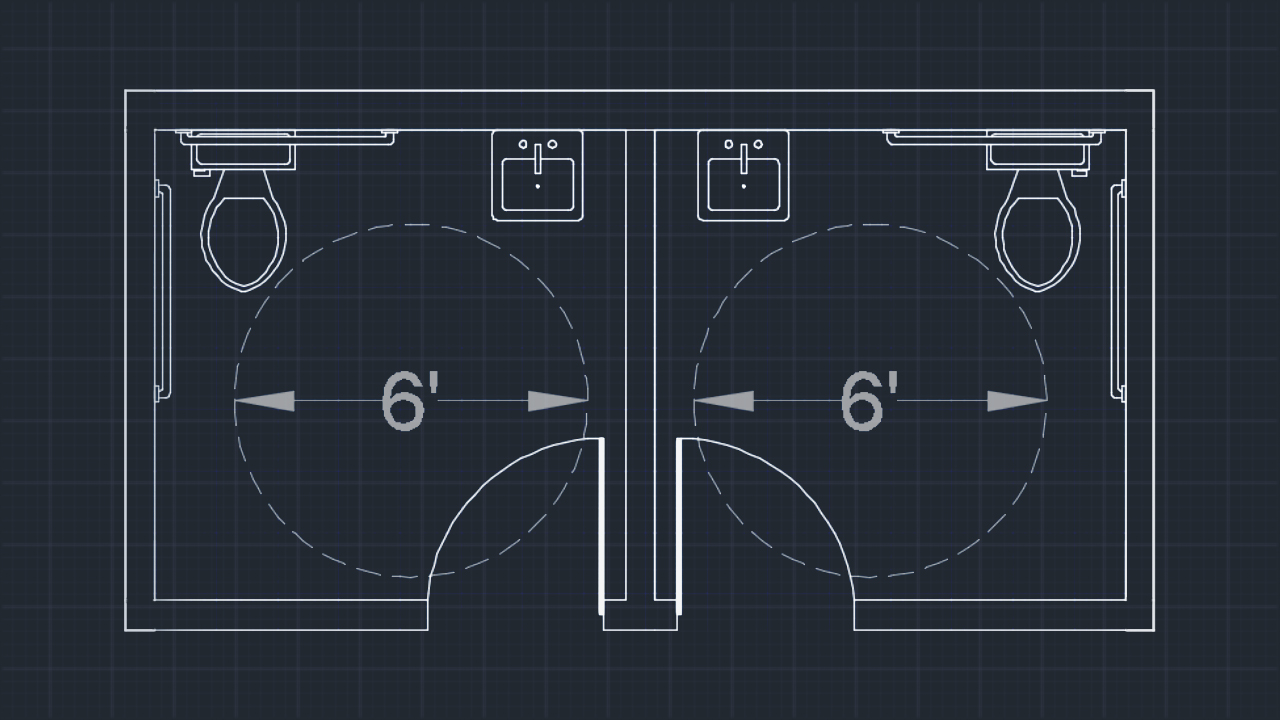
In this set of tutorials, you'll learn how to use simple tools and commands to draft a code-compliant restroom facility in AutoCAD. We'll begin by taking a look at the scope of our project and also any code issues we need to follow in order to make sure our facility is compliant. Once we know the rules, we'll begin using the tools. We'll start by drawing some reference lines to mark key placement areas for our fixtures. From there, we'll use the Tool Palette to quickly place and position fixtures in our facility. We'll also learn how to quickly create custom fixtures that we'll convert to blocks for use on future projects. Once the layout is complete, we'll save it as a block for future use as well. By the end of this course, you'll be familiar with AutoCAD's basic tools and commands in addition to understanding the process of working with code compliance. Software required: AutoCAD 2015.
Drawing an Accessible Restroom Layout in AutoCAD
Beginner
Table of contents
